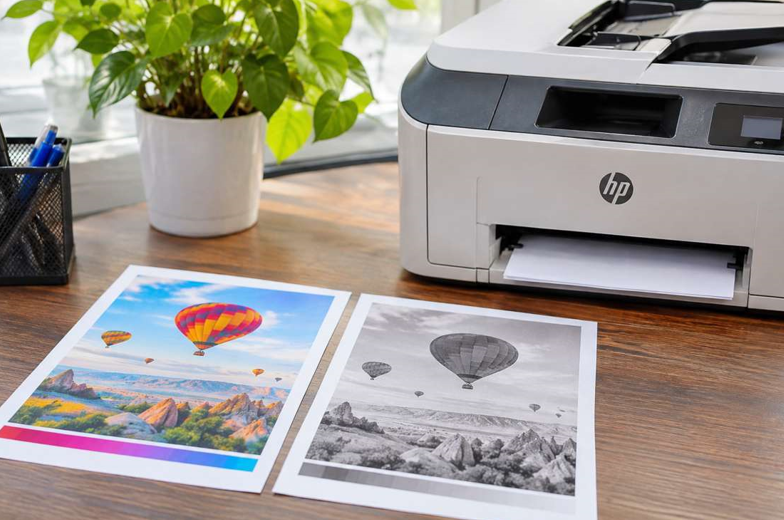

You print a colour brochure. Out comes a grey one. Or the page looks fine, except everything that should be red is missing.
Annoying, right? Especially when you paid for a Color LaserJet. But don’t panic. In most cases the printer isn’t broken. A setting got changed, or one toner cartridge ran out. Let’s work through it, easiest fixes first.
Why Does a Colour Printer Print in Black and White?
A few causes come up again and again:
- The print job is set to grayscale or black and white
- One or more colour cartridges are empty
- A cartridge isn’t seated properly
- The printer is set to use black only
- An old or damaged driver
- A worn imaging part or a printer fault
Notice that most are simple. Start there.
7 Fixes to Try
Fix 1: Check Your Print Settings
This is the number one cause. Open the print window and look for options like “Grayscale,” “Black and White” or “Print in Black Only.” Make sure colour is selected. Check the document’s own print settings too, since some programs have their own. If your colours suddenly come back, you’ve found the problem.
Fix 2: Look at the Toner Levels
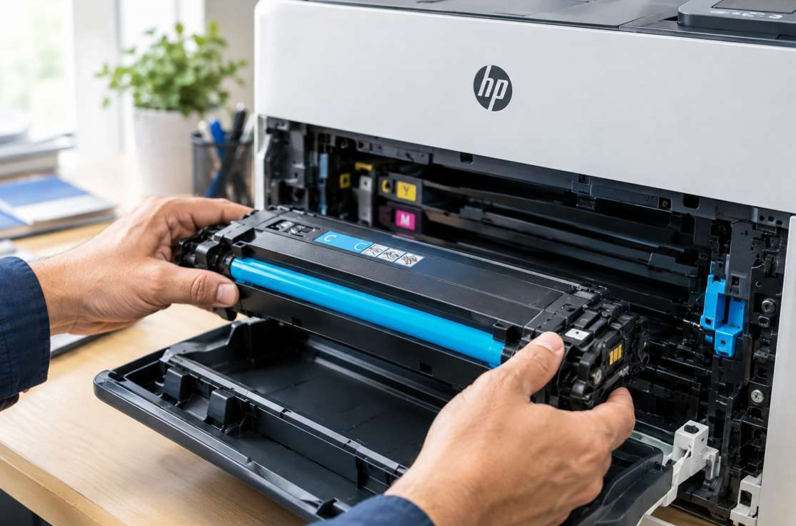
A Color LaserJet uses four cartridges: black, cyan, magenta and yellow. If one runs out, colours look wrong or vanish. Missing cyan, for example, makes blues and greens look off. Check each level on the display or on a status page. Replace any that are empty. When you do, match each cartridge to your exact model. The right HP Color LaserJet toner cartridges avoid a lot of detection and quality problems.
Fix 3: Reseat Every Cartridge
Switch off the printer and open the cover. Take each cartridge out and check for damage or leaks. Make sure all tape and covers are gone. Slide each one back in until it clicks. Close the cover fully. A loose cartridge may not be read at all.
Fix 4: Check Whether the Printer Is Set to Black Only
Some printers have a setting that tells them to use black toner only. It may be switched on by accident, or when a colour cartridge runs low. Look in the printer’s menu for colour or supply options. The wording differs by model, so check your manual.
Fix 5: Print a Test Page From the Printer
Print a test or demo page straight from the printer, not from your computer. If it prints in full colour, the problem is on your computer: settings or driver. If it prints without colour, the cause is inside the printer.
Fix 6: Update or Reinstall the Driver
An old or damaged driver can force black and white printing. Remove the printer from your computer. Download the latest driver for your exact model from HP’s support website. Install it and try again. Pick the right driver for your operating system.
Fix 7: Run Calibration and Cleaning
Many Color LaserJets have a calibration or cleaning option in the maintenance menu. It realigns the colours and clears small problems. Run it once, then print a test page. Don’t repeat it over and over. If one or two runs don’t help, something else is wrong.
Colours Look Wrong, Not Missing?
Sometimes you get colour, just not the right one. Look for these:
- Pink or reddish tint: often a magenta issue
- Colour bands or streaks: a dirty or worn part
- Washed-out colours: low toner or the wrong paper type
- Colours slightly off the edges: a registration problem
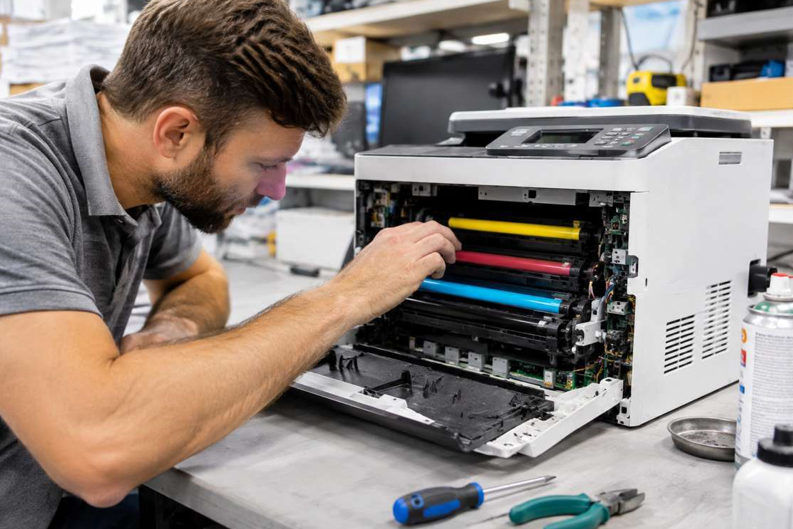
If a colour stays wrong after you’ve replaced the cartridge and run calibration, the cause may be inside the printer. A worn drum, transfer belt or fuser can all cause it. At that point, a color laser printer repair in Dubai service can test the parts and fix the fault properly. That’s usually cheaper than replacing the whole machine.
Habits That Protect Your Colours
- Print a few colour pages every week
- Replace cartridges when the first warning appears
- Use good-quality paper and match the paper type setting
- Keep the printer clean and dust-free
- Store spare toner sealed, in a cool, dry place
- Use cartridges that match your exact model
Mistakes to Avoid
- Replacing all four cartridges before checking settings
- Running the cleaning cycle again and again
- Touching the drum or transfer belt
- Buying the cheapest cartridge without checking the seller
- Ignoring a colour that keeps going wrong
- Opening the printer without training
When Should You Get Extra Help?
Ask a technician if:
- Colours stay missing after a new cartridge
- A test page prints without colour
- Streaks or bands keep returning
- You hear grinding or clicking
- You smell something burning
Please don’t open the printer yourself. The fuser inside gets very hot, and small parts break easily.
Final Thoughts
A Color LaserJet that won’t print colour is usually a small problem. Check the settings first. Then the toner levels. Then reseat the cartridges and try a test page. Most people fix it before they reach the end of that list. And if the colour is still missing, get the printer checked. Fixing the real fault beats wasting toner and paper.